
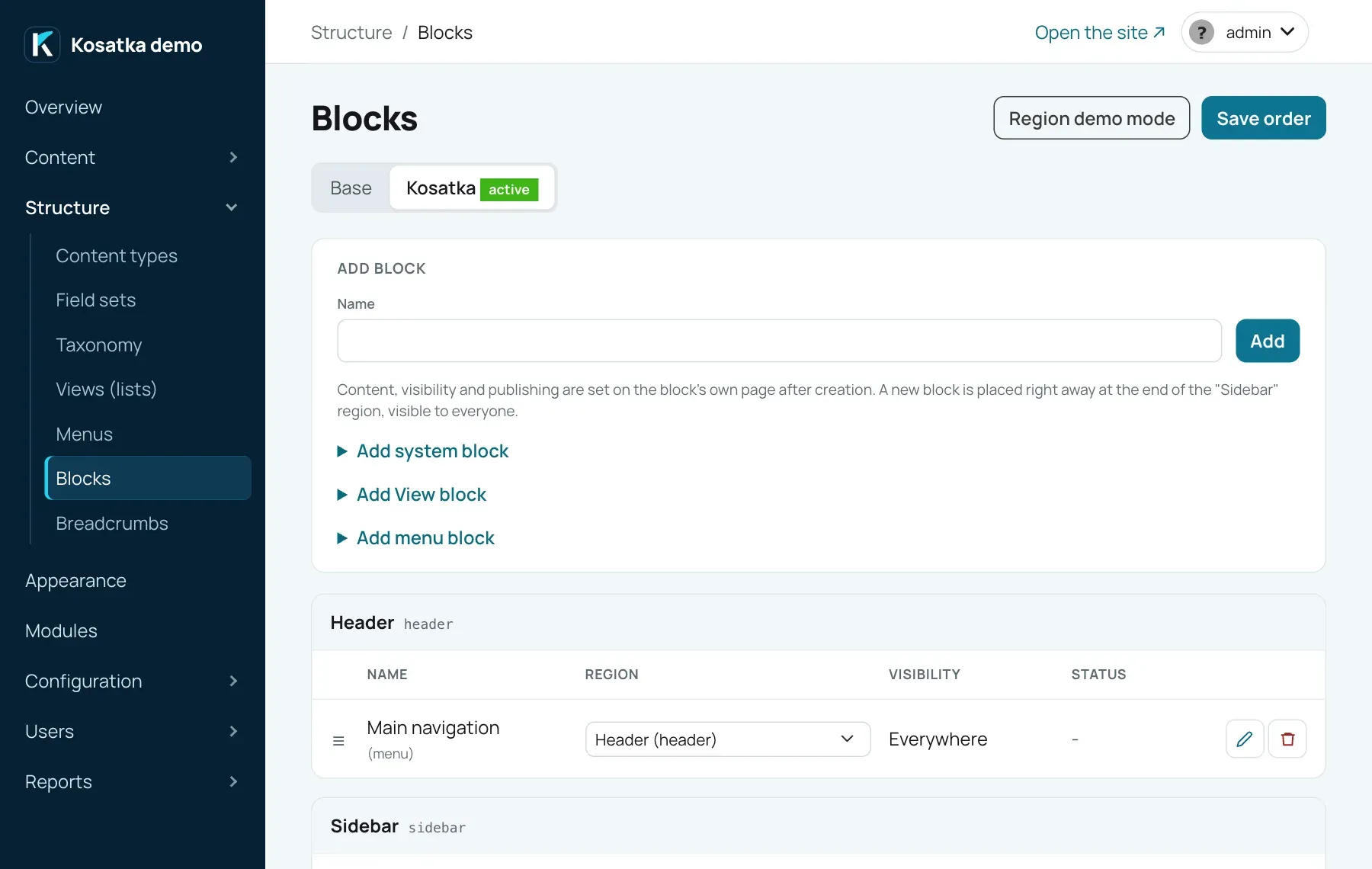
Blocks and regions
A region is a named area of the page that the theme provides: the
header, the sidebar, the footer. A block is something placed in a
region: your own text, a menu, a View, or a system block such as the
search form or the logo. Which blocks go where is the block layout, set
in the admin under Structure → Blocks (/admin/config/blocks).
Regions
Section titled “Regions”The theme declares its regions; the admin can’t add or remove them. The bundled themes have the same ones (some under labels of their own):
| Region | Machine name | Where |
|---|---|---|
| Header | header |
the top of every page; the main menu lives here |
| Sidebar | sidebar |
the side column, shown only when it has blocks for the page |
| Content top | content_top |
between the page’s title and its content |
| Content bottom | content_bottom |
after the content |
| Inside content (content page) | content_inline |
inside a content item’s page |
| Footer | footer |
the footer |
| Footer bottom line | footer_bottom |
the footer’s last line; the copyright block on a new site |
Another theme may have other regions. Every theme also has Hidden
(disabled): a block moved there is kept with its settings but isn’t
shown anywhere.
To see where the regions are, press Region demo mode on the Blocks
page. It opens the front page with each region framed and labeled with
its machine name, empty ones marked “(empty)”. Blocks shown only on some
pages appear when you open such a page with ?blocks_demo=1 added to
its address (for administrators only); the demo page has a box that
opens a path this way.
Block types
Section titled “Block types”| Type | Add it with | What it is |
|---|---|---|
| Custom block | Add block | your text, edited in the rich text editor |
| System block | Add system block | rendered by the engine or a module; only its region, title, settings and visibility can be changed |
| View block | Add View block | a View’s Block display (Views) |
| Menu block | Add menu block | one of the site’s menus |
System blocks of the engine:
| Block | Shows | Settings |
|---|---|---|
| Logo | the logo set on Site information, else the theme’s; a link to the front page; without either, nothing | - |
| Search the site | the search form (Search) | - |
| User menu | sign in / the signed-in user’s links | - |
| Recent comments | the latest 10 comments, each a link to it, and a link to all of them (/comments/recent) |
- |
| Tag cloud | the most used terms, bigger for more content (Taxonomy) | Vocabulary, Number of terms, Size levels |
| Copyright | © <year> <holder> |
Copyright holder (empty - the site’s name), First year (0 - the current year only) |
Modules add their own while they are enabled, for example Form, Poll, Language switcher or Error report hint. A block that shows one thing (a form, a poll) asks on its page what it Shows; until you choose, it shows nothing. A disabled module’s blocks aren’t shown.
Add a block
Section titled “Add a block”Custom block.
- Under Add block enter a Name and press Add. The block goes to the end of the theme’s default region (the Sidebar in the bundled themes), published, visible to everyone, with Show title on - it is on the site at once, so fill it in next.
- Open it (the pencil icon) and fill in:
| Field | What it does |
|---|---|
| Name | identifies the block in the admin |
| Machine name | what a text or a template embeds the block by: [[block:<machine name>]] (Embeds). Made from the name (_2, _3… when taken); can be changed - lowercase Latin letters, digits and _, starting with a letter, not another block’s |
| Show title | shows the name as a heading above the block |
| Text format | how the text is cleaned on save. The default (- as before (plain HTML) -) keeps safe HTML only; a format allowing script or style (/admin/config/text-formats) is the only way to keep raw code, such as an ad snippet. A chosen format’s processing when shown (Embeds, say) works on the block’s text too |
| Content | the block’s text |
| Published | an unpublished block is kept but not shown |
| Load on scroll | see below |
| Roles, Visibility | see Visibility |
System, View and menu blocks. Choose the block, View or menu and the region in its form and press Add. The View and menu forms also take a first visibility choice, and the menu form the levels to show. The rest is on the block’s page (the pencil icon).
| Setting | Blocks | What it does |
|---|---|---|
| Region | all | where the block is |
| Title, Show title / Display title | system, View, menu | a heading above the block; a View or menu block defaults to the View’s or menu’s name, a system block to its own (Recent comments) |
| Shows and the block’s own settings | system | see the table above |
| Initial level, Number of levels | menu | which part of the menu tree to show (Menus) |
| Load on scroll | custom, View | see below |
Which block, View or menu a placement shows can’t be changed: delete it and add a new one. A View block is shown only while its View display is published; a View without a Block display can’t be placed.
Load on scroll puts a placeholder on the page and loads the block when the visitor scrolls close to it: useful for heavy blocks low on the page. While it loads, the theme’s placeholder for the region is shown, if it has one.
Order and regions
Section titled “Order and regions”Each region is a table on the Blocks page, in the theme’s order. To rearrange:
- Drag a row by ☰ within its region or into another one, or choose another region in the row’s list (the row moves to the end of that region).
- Moved rows are marked until you save; a notice above the list reminds you.
- Press Save order.
Blocks in a region are shown top to bottom in this order.
Visibility
Section titled “Visibility”Every block has two conditions, and both must match.
Roles. Tick the roles that see the block, Guest (not signed in) included. None ticked means everyone.
Visibility. Which pages show it:
| Choice | Shown on |
|---|---|
| Everywhere | every page |
| Front page only | the front page |
| Only on specific content types | the pages of content items of the ticked types |
| Specific pages | the pages listed under Pages |
Pages takes one path per line, without the leading /. * matches
anything (articles/* is every page under articles/), <front> is
the front page. Then choose Show only on the listed pages or Show
everywhere except the listed pages.
A View block with a contextual filter (related content, more from this author) needs Everywhere or Only on specific content types: it is built from the content item being viewed and is empty elsewhere.
Block layout per theme
Section titled “Block layout per theme”Each theme has its own block layout. When more than one theme is
installed, the Blocks page has a tab per theme, the active one marked.
You can arrange an inactive theme’s blocks in advance; the site shows
them once the theme is made the default on the Appearance page
(/admin/config/appearance).
A theme without a layout of its own gets a copy of the active theme’s, in the regions with the same machine names, the first time its tab is opened or it is made active. A theme may also come with starter blocks (the bundled themes bring the copyright block in Footer bottom line; a theme can bring a custom block too, with its title and text). They are placed once, unless the layout already has them; after that they are ordinary blocks that you edit or delete, and the theme doesn’t bring them back.
Caching
Section titled “Caching”Blocks are built ahead of time and kept in memory. Saving a block, the order or a View rebuilds them at once; content and comments reach View blocks within a few seconds (Views).