
Views
A View is a list you configure in the admin instead of writing a
template: which content it picks, in what order, which fields each row
shows and how the list looks. The same View can be its own page, a block
in a region, a list under articles, the list on a term’s page or a tab
on user profiles. The front page feed and /rss.xml are a View too.
Views are managed in the admin under Structure → Views (lists)
(/admin/config/views).
Create a View
Section titled “Create a View”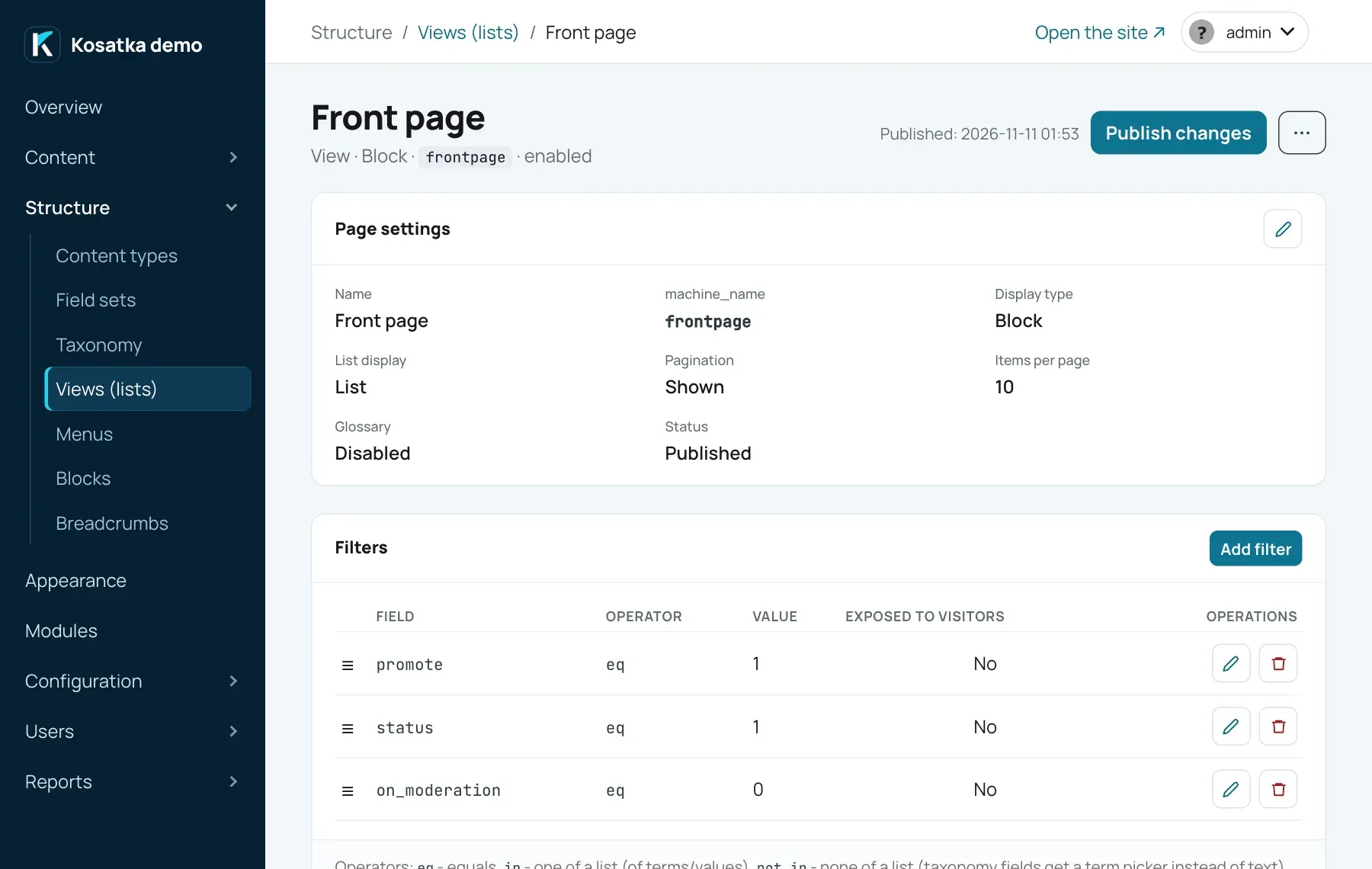
- Open
/admin/config/views. - Under Add view enter a Name, choose the Type of the display (Page, Block, Attachment to content or Term page) and the Base table: Content items or Comments.
- Press Add. The View page opens.
- Add at least one field (Fields → Add field, for example
Title), filters (Add filter) and sort criteria (Add sort criterion). - In Page settings → the pencil (Change), turn on Status (Published (page is available)) and save.
A new display starts unpublished, as a grid of 5 columns with 30 items per page. A page’s address is generated from the name; change it in Page settings. The base table can’t be changed after creation; the display type can, including Profile tab, which is only offered there.
Each display has a Machine name, view_<id> when it is made. A
Block display’s is what a text or a template embeds its list by
([[view:<machine name>]], Embeds); the front page feed
picks a display by it too. Change it in Page settings: the front page
feed follows the new name; the tags with the old one show nothing.
A View without fields shows nothing: even the title is a field (a term page and a theme template don’t use the fields).
Display types
Section titled “Display types”| Type | Where it is shown | Its own settings |
|---|---|---|
| Page | at its own address, e.g. /articles |
URL, SEO title, SEO description |
| Block | in a theme region, placed on the Blocks page | - |
| Attach to content | on the pages of the chosen content types, after the text and before the comments | Content types, Title on the page, Show title, Weight |
| Term page | on the pages of terms of the chosen vocabularies, as the term’s list of content | Vocabularies, Weight |
| Profile tab | a tab on user profiles: /users/<user>/<tab path> |
Tab path, Visible to, Weight |
Page. The address is a path without the leading / and may have
several segments (events/upcoming). The form refuses an address
something else on the site answers: the engine, a content item, a term
page or a module’s page (an enabled feed); a page added to a View or
copied gets a free one. Content answers an address first: an item that
gets the page’s address later from its URL pattern takes it over (an
address typed in the content form is refused). Published pages go into
the sitemap and can be picked as menu links. One segment may be %:
posts/% answers /posts/<alias>, the user with that alias becomes the
value of a contextual created_by filter, and %1 in the name or the
SEO title is replaced with their name. An unknown or blocked user gives
a 404. Such a page has an address per user, so it isn’t in the sitemap.
Block. Has no address. Place it on the Blocks page with Add View block. A block shows its first Items per page items; with Show pagination (off for a new block) it has a compact pager (‹ the page numbers ›) whose pages load in the block itself, without reloading the page (without the script a pager link brings the visitor back to the page). A block with a contextual filter has no pager.
Attachment. Several attachments on one page are ordered by Weight (lower first). An attachment shows its first Items per page items, without a pager; one with no results is not shown at all.
Term page. The list on a term’s page comes from the published Term
page display whose vocabularies include the term’s vocabulary (none
ticked means all); if several match, the lower Weight wins, and at
equal weights the one made first. Add the has_current_term contextual
filter so the list shows the term’s content. A new site has one already,
Term pages: all vocabularies, weight 0, published content of the term,
newest first, 10 per page. To give one vocabulary a list of its own,
give its display a weight below 0. Without such a display term pages
have an empty list. The term page shows the items as the theme’s teaser
cards: only the display’s filters, sort criteria and Items per page
apply, not its fields or its look.
Profile tab. The tab path uses Latin letters (lowercased), digits and
hyphens, and can’t be edit, files, the path of a module’s profile tab
(messages of Private messages, notifications of Subscriptions)
or another profile tab’s path. The tab’s title is the display’s name.
Visible to: Everyone, or Profile owner and administrators (others
get no tab and a 404 on its address). Add the created_by contextual
filter (comment_created_by for comments) so the tab lists that user’s
content, or a user field’s is_profile_user (contextual) so it lists
the content naming them: the projects someone is a member of, say.
The front page feed and RSS
Section titled “The front page feed and RSS”Front page feed on /admin/config/system/site-information picks the
content View whose list the front page shows, with its pager, and whose
first 20 items make /rss.xml; the View must be published. A new site
uses the Front page View: published content promoted to the front
page, sticky items first, then the newest. Choose - None - and the
front page has no feed and /rss.xml has no items. Separate XML feeds
come from the Feeds module.
Choosing the content: filters
Section titled “Choosing the content: filters”Filters narrow the list down; all of them must match. A filter targets a built-in property or any field from the shared field catalog, so one View can mix content types.
A View has no implicit filters. Without a status filter it lists
unpublished content too, and without content_type it lists every type.
Most lists need status = 1: a content View without one says so above
its filters.
Built-in filters for content:
| Filter | Operators | Value |
|---|---|---|
content_type |
eq, in |
one or several content types, picked from a list |
status |
eq |
1 published, 0 unpublished |
on_moderation |
eq |
1/0 - waiting for moderation |
promote |
eq |
1/0 - promoted to the front page |
sticky |
eq |
1/0 - sticky at the top of lists |
created_by |
eq, in |
user IDs; or contextual (see below) |
title |
eq, contains |
contains ignores case |
similar_to_current_node |
contextual only | content most similar to the current item, ranked (see Similar content); the value is a vocabulary, picked from a list, or Any vocabulary |
shares_terms_with_current |
contextual only | content sharing at least one term with the current item, unranked; the value is a vocabulary, picked from a list, or Any vocabulary |
has_current_term |
contextual only | content of the term whose page is shown |
Field filters, by field type:
| Field type | Operators |
|---|---|
| text, e-mail, phone | eq, contains, empty, not_empty |
| number | eq, gte, lte, empty, not_empty |
| date | eq, gte, lte, ongoing, not_ended, ended, empty, not_empty |
| boolean | eq, empty, not_empty |
| taxonomy | eq, in, not_in (terms are picked from a list), empty, not_empty |
| list | eq (one of its options’ values), in, not_in (several, comma-separated), empty, not_empty |
| image | empty, not_empty |
| reference | contextual only: referenced_by_current - what the current item links to through this field; related_to_current - that, plus what links to the current item |
| user | is_profile_user (contextual only) - content naming the page’s user in this field: the profile’s user of a profile tab, the user of a % address, on a content page its author; empty, not_empty |
The form offers only the operators that fit the chosen field. empty
and not_empty take no value. not_in also keeps content that has no
value in the field.
For a date field, Use relative date takes an expression instead of a
date: now, +7 days, -1 month, +2 weeks, +1 year. It is
calculated from today’s date in the site’s time zone (now is today),
each time the list is built. A date field’s filter compares the start of
a value; a date (not a relative one) covers its whole day, so eq and
lte take a start with a time on that day - the day in the site’s time
zone.
ongoing, not_ended and ended take no value: a date going on now, a
date going on or still to come (a poster of events), a date that has
ended (an archive). A date without a time ends with its day in the
site’s time zone, one with a time at its end (or its start without an
end). For a field with several dates, a content item is going on or not
ended when one of its dates is, ended when all are. A View block keeps
its list until its next refresh (Caching), so an event can
stay in a “not ended” block for up to 15 minutes after it ends.
Fields of blocks. The picker’s Fields of blocks lists the fields
of the field sets of every blocks field, as Cast › Actor. Such a filter
keeps the content with a block that matches: Cast › Actor with
related_to_current (contextual), in a block on an actor’s page, lists
the films the actor plays in; Cast › Character contains “doctor” -
the films with such a role. empty and not_in keep the content with
no block that has it. A field only field sets have isn’t in the shared
catalog: no content item has it itself. See
Field sets.
Where the value comes from
Section titled “Where the value comes from”| Source | How | Without it |
|---|---|---|
| Fixed | the Value you enter | an empty value turns the filter off |
| Exposed to visitors | a query parameter, named in Query parameter (?publisher=…): lowercase latin letters, digits and _, starting with a letter, one per exposed filter of the display, not page, letter or sort (the page’s own) |
no parameter - no restriction |
| Contextual | the page being shown: the current content item, the profile’s user, the user from a % address, the term |
no context - the list is empty |
A filter can’t be both exposed and contextual. A list built for a content item - an attachment, or a block with a contextual filter - leaves that item itself out.
Exposed filters
Section titled “Exposed filters”A View page shows a form for its exposed filters above the list. The
label is Label on the public form, or the field’s name. The form gets
a text box for text fields and the title, number and date inputs, a
Yes/No choice for booleans. A filter on options - a taxonomy field’s
terms, a list field’s options, a module’s choices - is a drop-down for
eq (one option) and checkboxes for in and not_in (several: the
visitor ticks what to show, or what to leave out). Ticked boxes send
the parameter once per option (?verdict=great&verdict=masterpiece);
a comma-separated value (?section=3,5) works as well. Other exposed
filters have no form control but still work from the address. The
pager keeps the parameters. A page filtered this way is marked
noindex.
Exposed filters work on a View’s own page only: blocks, attachments, term pages, profile tabs and the front page feed show no form and read no parameters, so their exposed filters restrict nothing.
Contextual filters in blocks
Section titled “Contextual filters in blocks”A View block with a contextual filter is built for each content page from the item being viewed, so “more from this author” or “related articles” follows the page. Such a block works only with the visibility Everywhere or Only on specific content types (see Visibility) and shows nothing on pages without a content item.
Similar content
Section titled “Similar content”similar_to_current_node lists the published content that shares the
most taxonomy terms with the item being viewed, any content type (add a
content_type filter to keep one). Its Vocabulary setting chooses whose
terms are compared, for example the tags; Any vocabulary compares all of
them.
A shared term counts more the rarer it is: it weighs 1 / ln(1 + n), n
being how many published items carry it (the current one included). A term
of 2 items weighs 0.91, of 10 items 0.42, of 300 items 0.18, so one rare
shared tag ranks an item above another sharing two common ones. The list is
ordered by the sum of the shared terms’ weights; equal sums go by more
shared terms, then by the View’s own sort criteria, then by the lowest
content ID. The page size and the pager apply to that ranked list.
The ranking is computed when the list is shown, from the terms as they are
at that moment: new content and changed terms count at once. Unpublished
content and content waiting for moderation is never listed and doesn’t
count towards n.
Sorting
Section titled “Sorting”Sort criteria apply in order: the first is the main key, the next ones only break ties. Drag the rows to reorder them. With no criteria the list is newest first. A criterion’s field can’t be changed afterwards (delete it and add another), its Direction can.
| Built-in criterion | |
|---|---|
| Creation date, Update date, Name | the item’s dates and title |
| Page views | total views |
| Page views today | today’s views; items not viewed today are left out |
| Page views, 7 days, Page views, 30 days | the views of the last 7 or 30 days, today included; items not viewed in them are left out (see Views and popular content) |
| Random | a random order each time the list is built; a block keeps its order until its next refresh (Caching) |
| Sticky (descending: sticky first) | sticky items first; add a second criterion to order each group. The bundled themes show a sticky item larger, leading the list |
Text, number and date fields can be sort criteria too. A field with
several dates sorts by the nearest of them not ended yet (all ended -
the latest): with not_ended and ascending order, a list of what’s
coming next. similar_to_current_node orders the list by its own
ranking; the sort criteria only order the items that rank equally.
Sorting chosen by visitors
Section titled “Sorting chosen by visitors”Tick Offer to visitors on a criterion, give it an Option label
(“Cheapest first”) and a Value in the address (price-asc: Latin
letters, digits, _ and -, unique in the display). The criteria
offered this way are alternatives: the page shows a Sort by drop-down
of their labels next to the exposed filters, and only the chosen one
applies - in the place of the first offered criterion; the criteria not
offered keep their places. With no choice the first offered one
applies, as in a block of the View.
For “cheapest first” and “most expensive first”, add the price field twice, ascending and descending, each with its own label. Put Sticky before the offered criteria to keep sticky items on top whatever the visitor picks, and a criterion after them to break ties.
The choice is the sort parameter (/products?sort=price-asc works as
a link); the pager keeps it, and a page with it is marked noindex.
Criteria of modules
Section titled “Criteria of modules”An enabled module can add its own sort criteria, filters and fields - a
rating, a number of votes. The pickers list them under Modules. A
module’s criterion or field may have settings of its own in each View,
shown under the picker (a rating’s threshold, how it is shown). A
module’s filter compares a number (eq, gte, lte, empty - the
item has no value, not_empty) or picks among its options, a workflow
state, say (eq, in, empty, not_empty); either can be exposed.
While the module is disabled its criteria are not applied (the View’s
cards show their keys instead of their names), and uninstalling the
module removes them from every View.
What each row shows: fields
Section titled “What each row shows: fields”The Fields card lists what a row shows, in order (drag to reorder).
Built-in fields: Title, Content type, Status (Published,
Unpublished or On moderation), Creation date, Update date (its
last save), Page views, Comments (their number), Reading time
(“5 min read”: the item’s long text fields shown on its page at 200
words a minute; nothing for an item without text), Author (a link to
the profile), Link to content (a “Read more” link; its text is the
field’s Label) and Link to edit the content (an “Edit” link to its
form; shown to everyone who sees the list, the form opens only for who
may edit the item - for a list of one’s own content or an editors’
list). Any field of the catalog can be added, except groups, files and
blocks fields.
A list of a user’s own content with drafts - a Profile tab visible to
the Profile owner and administrators, the contextual created_by
filter and no status filter - shows each item’s state with Status,
Update date and Link to edit the content.
A date field with times or periods shows them as on the content page.
To show a second title (a translation, an original name) where an item
has one and its title where it doesn’t, add that text field with
Fallback field set to title and the built-in Title hidden
(Exclude from display).
| Field setting | What it does |
|---|---|
| Label, Show label | the label in this View (empty - the field’s name) and whether it is shown |
| Image style | the image style for an image field; an image without a style is not shown |
| Images | an image field with several images: The first (the default) or All, a row of them |
| Several dates | a date field with several dates: all (the past ones marked), only those not ended, the nearest and “N more”, or the first |
| How to show, Several values | a link field: as links or in a module’s way (a video preview, say), and how several values show - one after another, the first large and the others small, or only the first; independent of the content page’s choice |
| Date format | a format from /admin/config/date-formats; empty - the field’s own |
| Tag format | taxonomy fields: plain (names), linked (links), badges; a term of a vocabulary without public term pages is never a link |
| Link | To the content, or To the original image for an image; not for taxonomy and link fields, which are links themselves |
| Custom CSS class | a class on the field’s wrapper |
| Trim text (characters) | strips the HTML, leaves out the code blocks (<pre>) and cuts the text at a word boundary, with “…” |
| Rewrite HTML | your markup around the value: {{value}} is the value, {{field:<key>}} another field of the row |
| Exclude from display | the field isn’t shown itself but is available as a token |
| Hide in the compact “rest” list | see Show the first N in full below |
| Fallback field | the key of another field shown when this one is empty |
A field’s key in tokens is its machine name, or the built-in’s name
(title, created_at…).
How the list looks
Section titled “How the list looks”Page settings → the pencil (Change) holds the list’s look, under Display. For a display in a group (see below) these settings may be inherited.
| Setting | What it does |
|---|---|
| List display | List (a row per item), Grid (cards) (Grid columns across), Table (a column per field), Carousel |
| Show the first N in full, the rest as a list | the first N items in the chosen style, the rest as a compact list under Heading above the compact list; 0 - off |
| Show pagination, Items per page | a pager (?page=2) and the page size; a block’s pager loads its pages in place |
| Skip the first N items | the first N items of the result are left out: every page starts after them, the pager counts the rest; 0 - none |
| AJAX pagination (no page reload) | the pager and the index letters load the list in place (content View pages; a block always does) |
| Text before the list, Text after the list | rich text around the list, shown even when the list is empty |
| Custom CSS | CSS put in with the list; limit your selectors to the list’s container yourself - #view-list-container on the View’s own page, #view-list-container-block-<display ID> elsewhere (a block, an attachment, a profile tab) |
| Row template | your markup for a row (see below) |
| Group by field | a heading for each value of a field; dates by year, month or day |
| Alphabetical index (A B C…) | a letter bar filtering by the first letter of the Index field (the title by default); add a matching sort |
| Theme template | a template of the active theme renders the list instead (see below) |
Carousel settings: Slides per view, Autoplay, Loop, Navigation arrows, Pagination dots, Transition effect (Slide or Crossfade) and Slide link field: a text field whose value the slide links to. Without it, or when an item’s value is empty, the slide links to the content item.
Grouping works within one page, in grid, list and table, not in a carousel.
A grid card shows the picture on top in its image style’s shape (a wide card, a tall cover) and the fields under it; its title is the built-in Title when the View shows it, else the first field with a value. On a tablet the grid has two columns, on a phone one.
Row template
Section titled “Row template”A row template replaces the default card markup in a list, grid or
carousel (not a table). Tokens: {{field:<key>}} is a field’s rendered
value (with its image style, terms and link), {{url}} is the content
item’s address. For example, with links turned off on the fields:
<a href="{{url}}" class="card">{{field:cover}}<h3>{{field:title}}</h3></a>Don’t wrap a field that has its own Link in <a href="{{url}}">:
nested links break the card. {{field:…}} puts in HTML, so it doesn’t
work inside an attribute. Style the cards in Custom CSS.
Theme template
Section titled “Theme template”Theme template is the name of a file in the active theme:
views/<name>.html with a view_<name> block renders the list in place
of the display style. Without that file the display style is used. It
applies to pages, blocks, attachments, profile tabs, the front page feed
and embedded lists, right away, without publishing. Writing such a
template is covered in Templates.
Displays of one View
Section titled “Displays of one View”A View can have several displays sharing their settings, like a page of all articles and a block of the latest five.
- Duplicate (the copy icon on the list, or the View page’s ⋯ menu) copies a display: the copy has the name with “ (copy)” added and is unpublished. The first duplicate turns the View into a group with a Default display holding the shared settings, seeded from the original: its name is the original’s with “ - Default” added, its tab reads Default, and the list shows the group under the View’s name. Default itself is never shown on the site. The original and its first copy keep their own settings (every card overridden) until you revert their cards.
- + Add display adds a display to the group that inherits everything.
- Each of the four cards (Page settings, Filters, Fields, Sorting) is either inherited from Default (read-only, with an Override button) or overridden (with Revert to default). Name, machine name, type, address, SEO title and description, theme template, status and the placement settings are always the display’s own.
- Delete in a display’s ⋯ menu deletes that display; deleting a group’s row on the list deletes the whole View with all its displays.
Publishing changes
Section titled “Publishing changes”Edits are saved at once, but visitors keep seeing a display’s last published version wherever it shows - its page, a block, an attachment, a term page, a profile tab, the front page feed, an embedded list, the front page’s RSS - everyone, administrators included:
- Publish changes makes the current configuration the public one;
Discard changes goes back to the published one. The bar at the top
of the View page says when there are unpublished changes; in a group,
a
*on a display’s tab marks them. - A new site’s Views come published. A display added in the admin shows its current version until it is published for the first time.
- The address, machine name, status, type and theme template apply at once.
- A field deleted since the publishing drops out of the published version’s filters and sorting.
Preview at the bottom of the View page shows the list with the current, unsaved settings, in the site’s theme; with Refresh automatically on, it is redrawn after every change.
An unpublished display (Status off) isn’t shown. Its page answers 404, except to users who may view unpublished content: they see it with a notice.
Caching
Section titled “Caching”View blocks are built ahead of time and kept in memory. Saving anything
in a View rebuilds them at once. Content created, edited, published or
deleted - and comments - reach them within a few seconds (a burst of
changes rebuilds them once); the rest is refreshed every 15 minutes. To
refresh them right away, use Clear cache on the Performance page
(/admin/config/performance). Pages, attachments and blocks with a
contextual filter are built on each request, and so are a block’s pages
after the first.
A block is built as a guest sees it. While some content type is closed to guests (Content types), a block that would show its content is also built for the visitors who may view it - once for each set of closed types, on the first visit after a refresh.
Comment Views
Section titled “Comment Views”With the Comments base table a View lists comments - those on published content only.
- Filters:
comment_node_type(the type of the commented content),comment_status(1published,0waiting for approval,2spam; without it the View lists the published comments only),comment_created_by(may be contextual),comment_subject,comment_content(eq/contains),comment_is_reply(0/1). - Fields: Subject, Text, Author, Date, Content item.
- Sorting: by date or by subject, one criterion.
- Styles: list, grid, table. Displays: page, block, profile tab.
- No publishing, alphabetical index, AJAX pager (but in a block) or exposed filters form (exposed filters still work from the address).
Examples
Section titled “Examples”Latest articles in the sidebar. A Block display. Filters:
content_type eq Article, status eq 1. Sort: Creation date,
descending. Fields: Title with Link To the content,
Creation date. List display List, Items per page 5. Turn on
Status, then place it in the Sidebar region with Add View block.
A section page. A Page display at news. Filters: content_type
eq Article, status eq 1, the taxonomy field section eq the
News term. Sort: Sticky, then Creation date descending. Fields: an
image with a style, Title, the body with Trim text 200. Grid
(cards), 3 columns, pagination on. Add it to the main menu as a View
link.
A lead story and the rest. Two displays with the same filters and sort (a group shares them): a block with Items per page 1 for the lead story, shown large, and a page or a block with Skip the first N items 1 for the rest, in a grid with a pager. The lead story is not repeated in the list, on any of its pages.
A catalog with a search box. A Page display at products of
Product content with title contains, Exposed to visitors,
Query parameter q. Visitors type in the box; /products?q=lamp
works as a link.
Upcoming events. Filters: content_type eq Event, status eq
1, the date field starts not_ended (or gte now with Use
relative date: only what starts from today on). Sort: starts
ascending. Group by starts, Date: by month.
Related content under an article. An Attach to content display for
Article, Title on the page “Related”. Filters: status eq 1,
similar_to_current_node (contextual) with the tags vocabulary: the most
similar first. 4 items, no pager. Or use shares_terms_with_current for
any item with a common term, or a reference field with
referenced_by_current.
More from this author. A Block display with created_by
contextual and status eq 1, placed with visibility Only on
specific content types.
A user’s articles on their profile. A Profile tab display, Tab
path articles, filters content_type eq Article, status eq
1, created_by contextual. It opens at /users/<alias>/articles.